
SMS Surveys
SMS Surveys are surveys that occur via SMS. The system sends the questions via SMS, and the respondents give their answers to the system via SMS. It is recommended you read the General documentation first before reading the specific SMS documentation.
Unrecognised Response Fallback Message
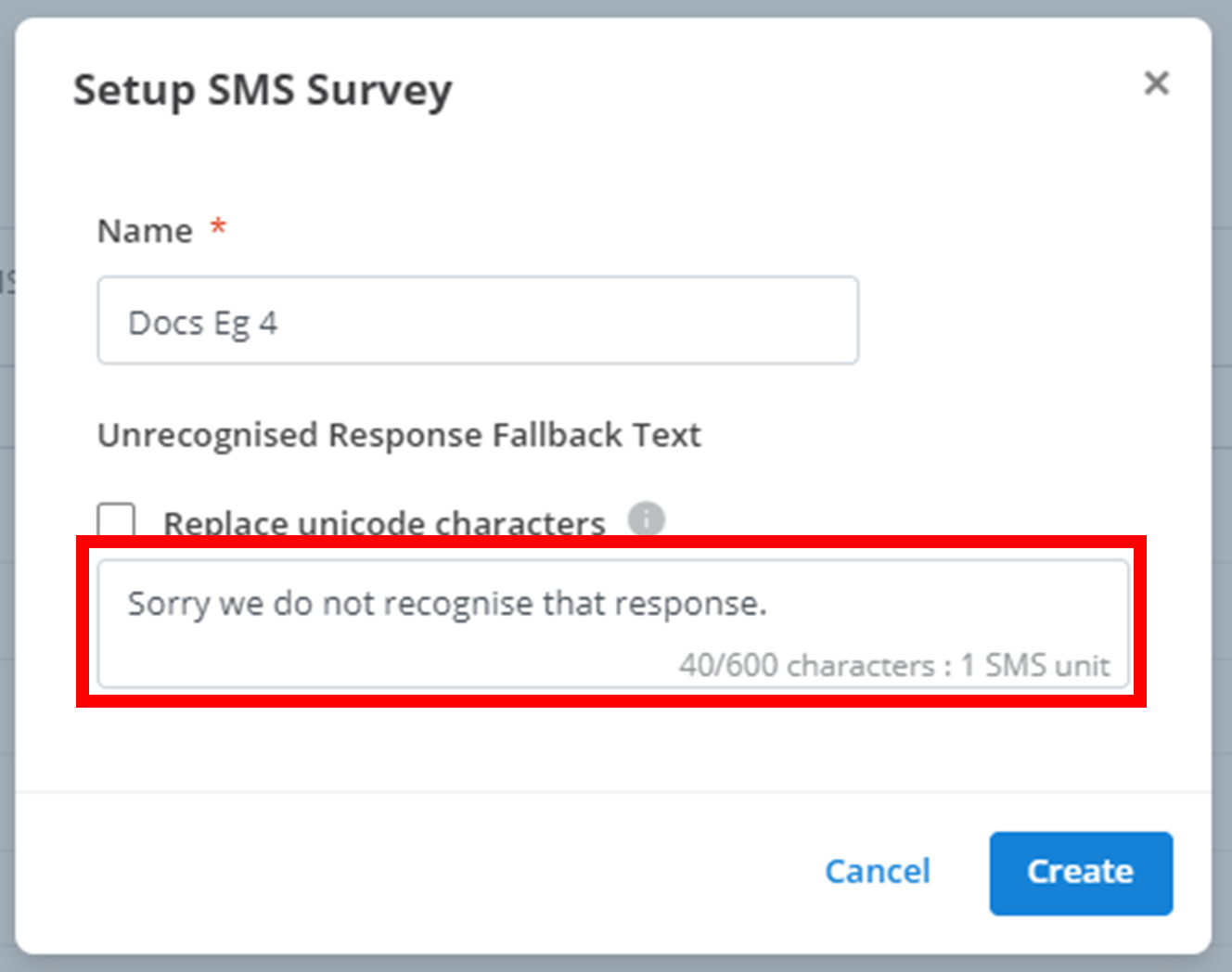
If a respondent's answer to a question is unrecognisable as one of the predetermined answers, they will receive this 'Unrecognised Response Fallback Message'. Simply enter the text you would like to appear in the SMS in the outlined text box. In the example below, if a survey respondent gives an invalid answer, they will receive the SMS 'Sorry we do not recognise that response.'
Questions
Question Content
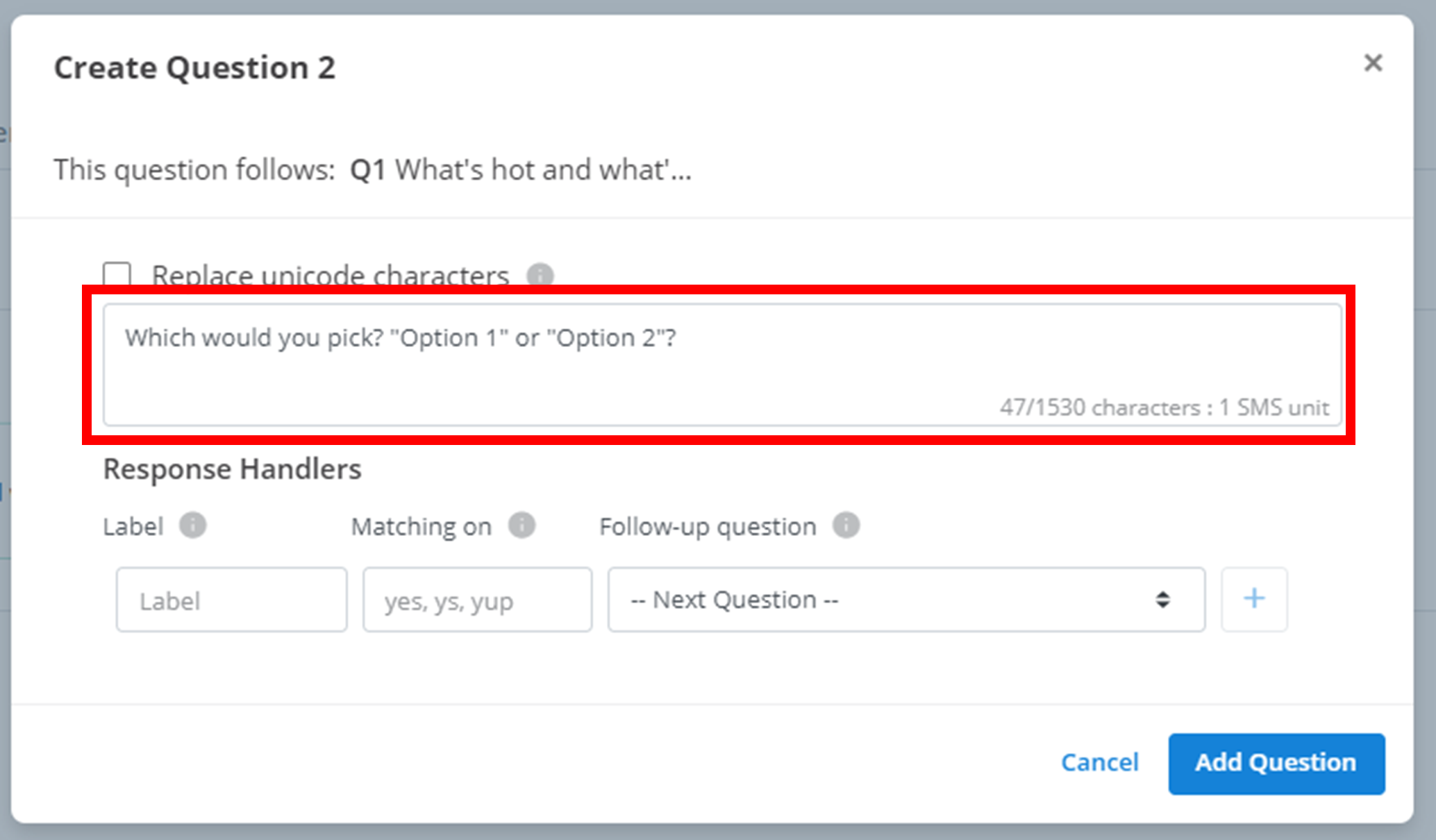
Survey respondents will receive an SMS from the survey asking them a question and providing them a list of valid recognised answers. You must configure this message yourself in the question content. The question content is the first customisable option in the New Question menu. Simply entire the desired 'question' SMS into the outlined textbox. A detailed example can be found below in Example SMS Question.
Response Handlers
Response handling is identical to General. Here, the 'Matching-on' words you are looking for in respondent's responses are text-based SMS's.
Example SMS Question
Below is a full example of an SMS Question using the New Question menu.
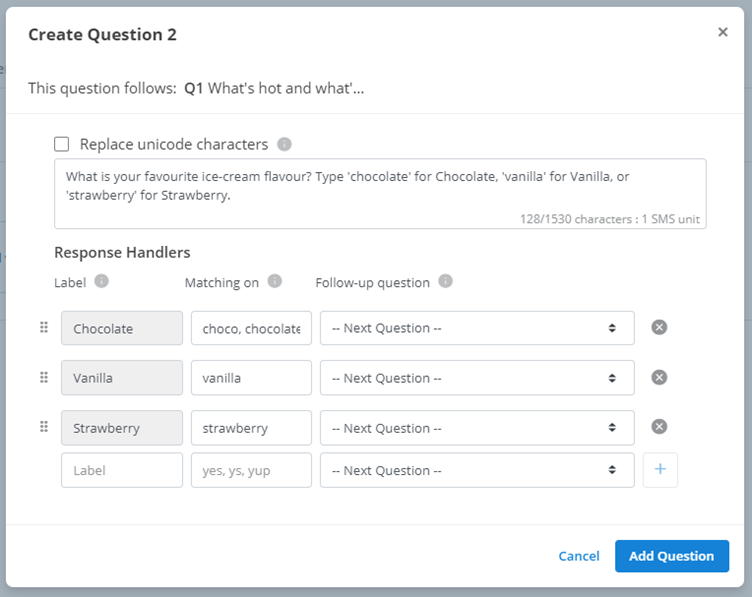
In the above example, when survey respondent's reach Q2 in the decision tree, they will receive an SMS that says: "What is your favourite ice-cream flavour? Type 'chocolate' for Chocolate, 'vanilla' for Vanilla, or 'strawberry' for Strawberry." If the survey respondent responds to the SMS with and SMS saying 'choco' or 'chocolate', their answer will be recorded as 'Chocolate', and they will be directed to the next question. If they respond with 'vanilla', their answer will be recorded as 'Vanilla', and they will be directed to the next question. If they respond with 'strawberry', their answer will be recorded as 'Strawberry', and they will be directed to the next question.
Virtual Number Assignment
You can automatically allocate a survey to one or more of your virtual numbers (VNs) you have set up. If a customer contacts a VN with an assigned survey, the survey will automatically start.
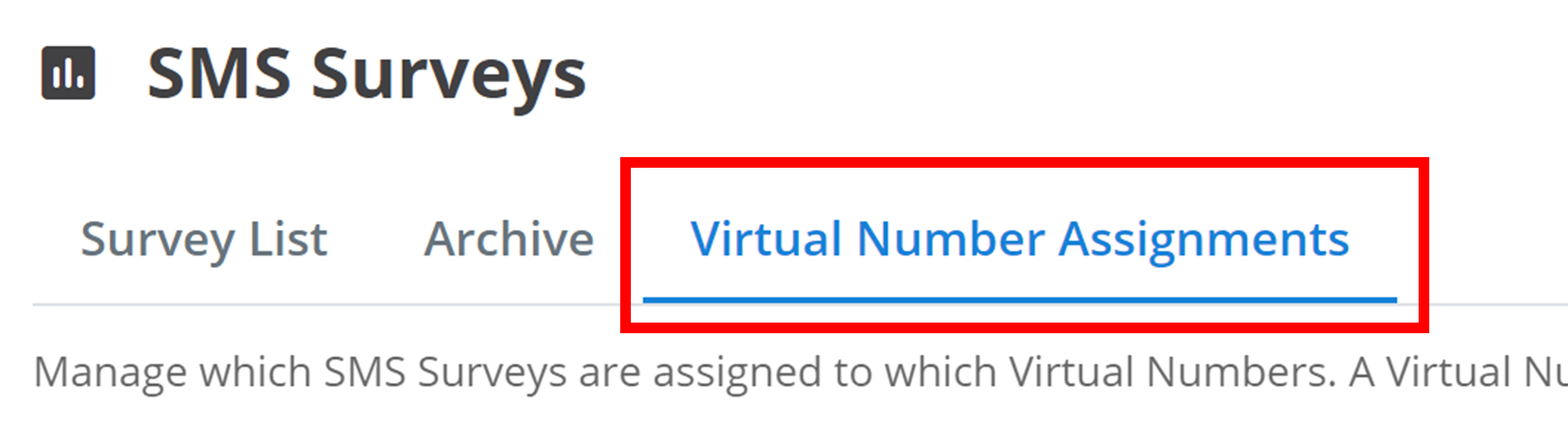
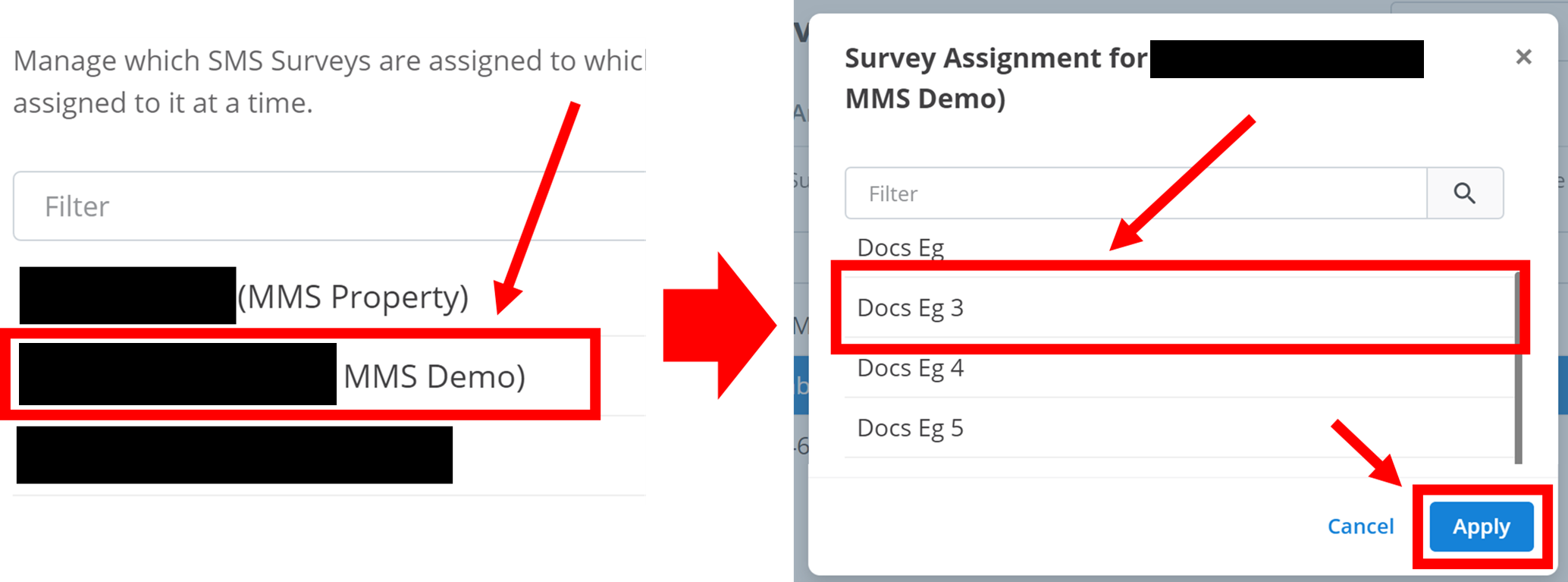
To assign surveys to your VNs, first navigate to the 'Virtual Number Assignment' tab at the top of the page.
To assign a survey to a VN:
Click on the VN you want to assign a survey to
Click on the survey you want to assign
Click Apply
Important
A VN cannot have more than one survey assigned to it. However, the same survey can be assigned to multiple VNs.
The steps should look something like this:
Tip
You can search through your VNs and surveys by name using the 'Filter' search box.
How is this guide?