
Validation Campaigns
Most of the documentation for this campaign type can be found in General. This page is for features specific to validation campaigns. It is recommended to read the general documentation first.
A Validation Campaign is used to validate phone numbers. Just upload a contact list, and when you run the campaign it will give you a status of every contact in the Campaign Results file. In the Campaign Results file, under the 'Content' column, you will find the status of each number.
Connection Status
- Connected: If the number is valid for contact, it will read 'Connected', along with the Mobile Network Code and carrier name of the phone number. E.g. Connected 505-01 (Telstra)
- Indeterminate: The connection status of the number is unable to be determined.
- Disconnected: This means the number is not valid for contact.
Receipts
Whilst your validation campaign runs and validates every contact in your file, you will receive receipts for each validation in real time. It will show you how many contacts, and what percentage of all contacts, fall under each connection status. An example is shown below.
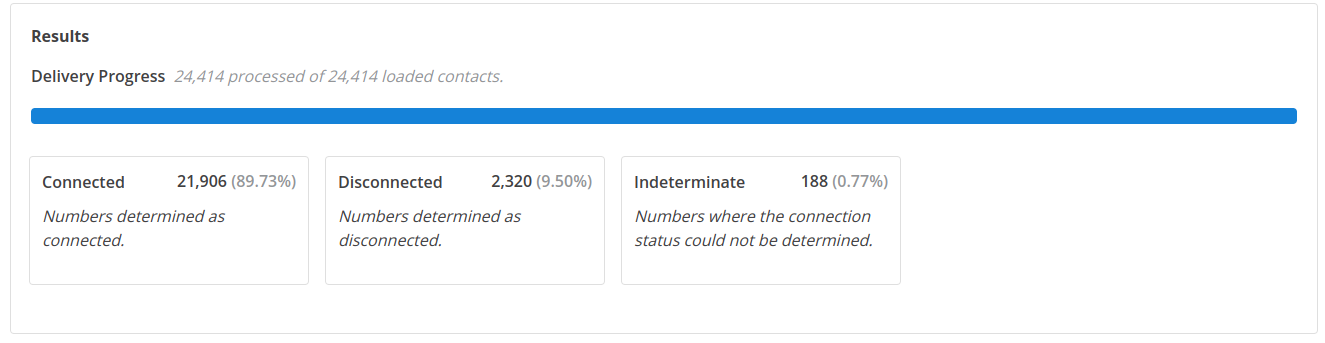
Test Campaign
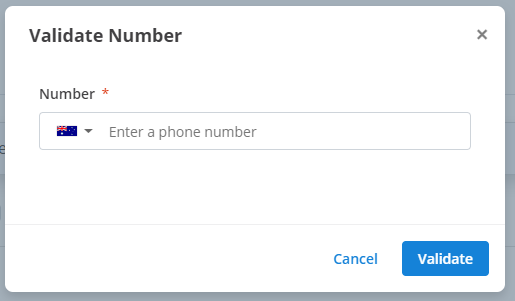
Below is the Test Campaign menu for a Validation Campaign. First, select the region of the number you want to validate, then enter the mobile number you want to validate. Finally, click Validate button to validate the inputted number.
After a short period, you should receive a notification on the right hand side of the screen near the top like the one below.
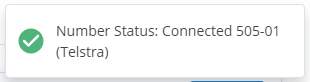
A valid connected number will be indicated by a green tick on the left of the notification as above. It also provides a status of the number that is explained in Connection Status.
How is this guide?