
Quick Replies
Quick Replies are message templates that you can use in the Message2Give Chat. They are most useful for messages that are commonly sent, but are also very long. For example, you may set up a quick reply that outlines some lengthy terms and conditions. Then, you wouldn't have to type them out everytime in the chat, and could instead just use the quick reply.
Create
Navigate to Section
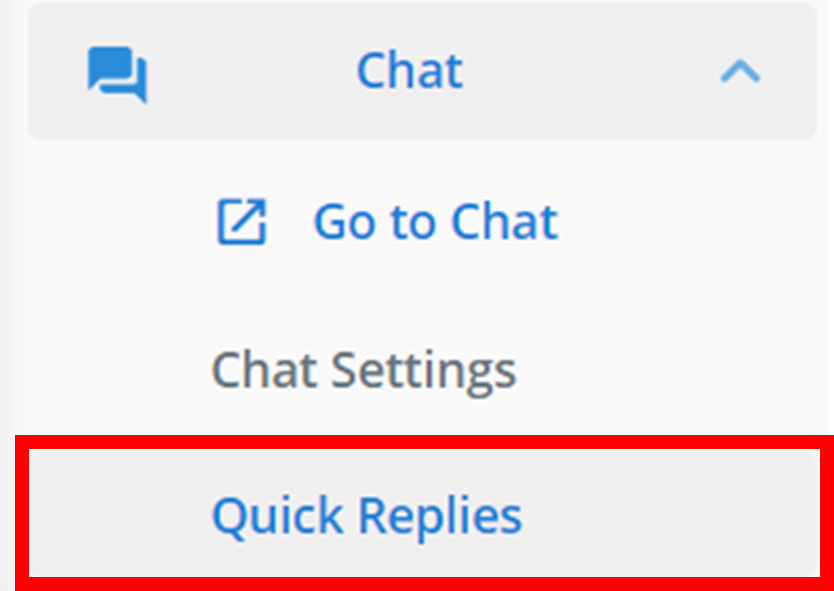
Firstly, to create a quick reply, navigate to the Quick Replies section on the navbar:
Select Type
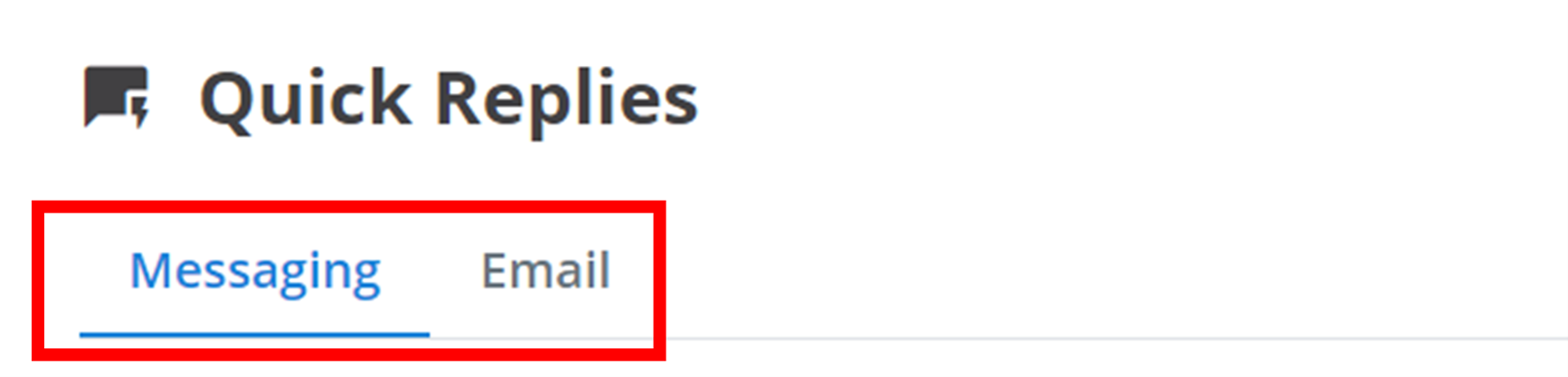
There are two types of quick replies - for Messaging (MMS and SMS) and for Email. Email quick replies can only be used for SMS conversations in Message2Give Chat, and the same applies to Messaging. Pick your desired quick reply message type using the tabs outilned below.
Start Creation
Then, to create a new quick reply for that message type, click the + Template button.

Configure Template
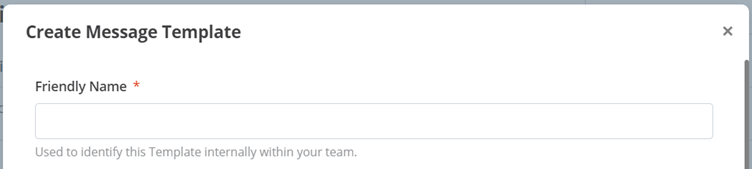
Next, a small menu will come up where you create your quick reply. The 'Friendly Name' is just the title of the quick reply and is used to distinguish between different quick replies in your workspace.
Create
Finally, you create the actual message for the quick reply. Click the Create button to finalise and add the quick reply to the workspace.
Manage
All of your quick replies will appear here:
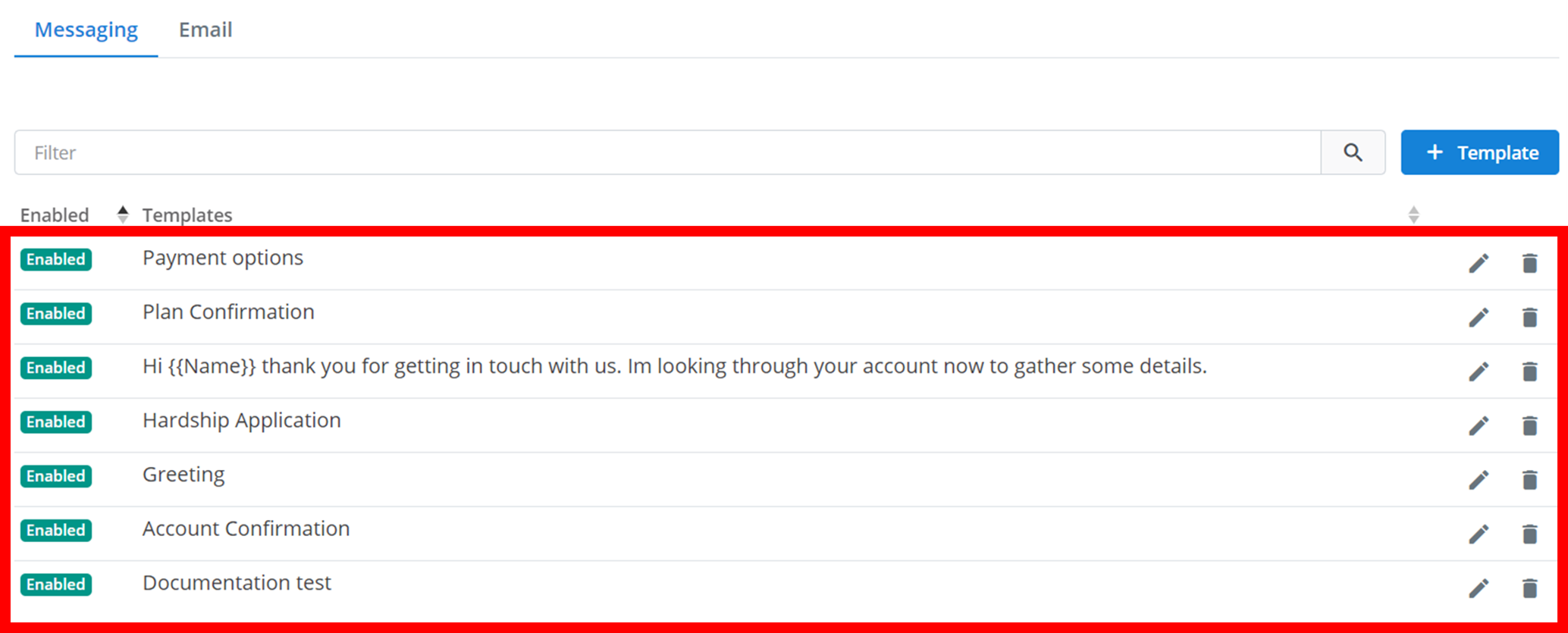
To search through your quick replies, type into the 'Filter' (outlined below). Only the quick replies that have the searched text in their title or their message content will appear. In the below example, only the three quick replies that appear have 'hi' in either their title or message.
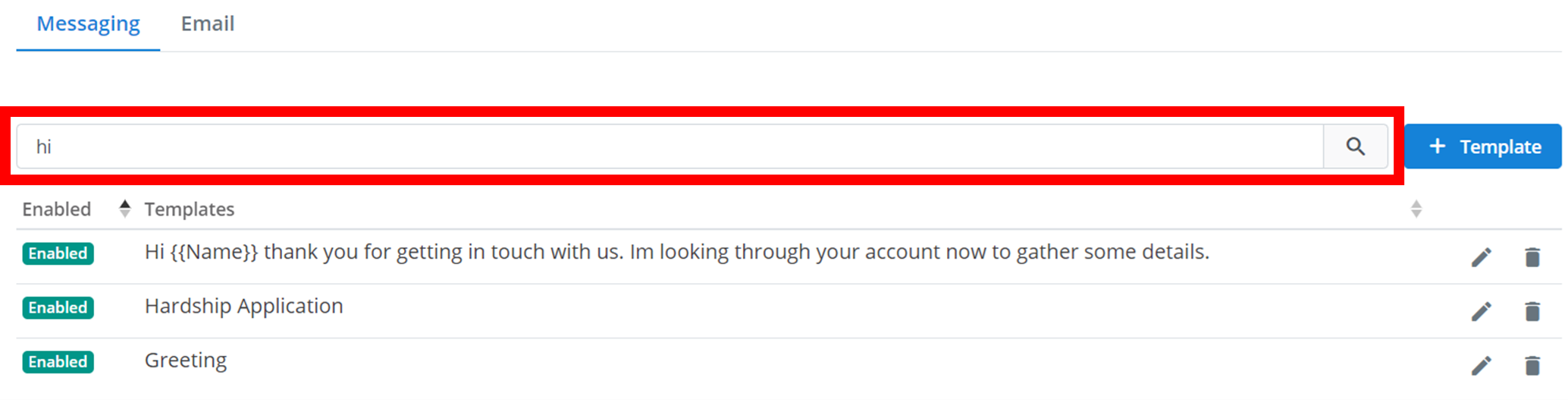
To edit any of the quick replies, click on the pencil icon. To delete a quick reply, click on the trash icon and then click 'Confirm'.

How is this guide?