
Email messaging offers advanced features beyond basic text communication, including rich formatting, file attachments, and HTML customization. This page covers email-specific functionality including subject lines, rich-text editing, HTML support, and attachment management.
For general message type information, refer to the General Message Types documentation.
Message
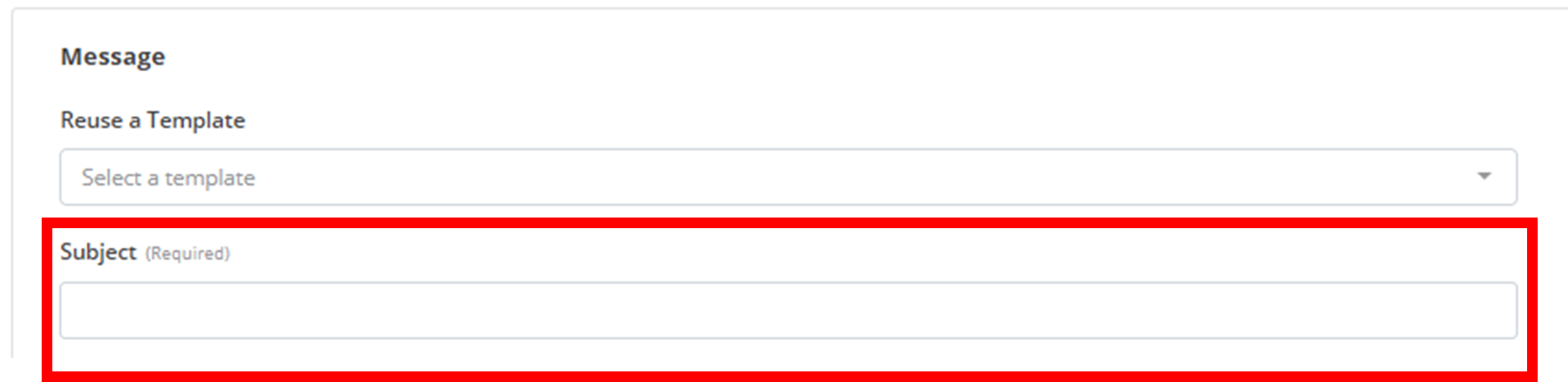
Subject
Every email requires a subject line that appears in the recipient's inbox. Enter a clear, descriptive subject that summarizes your message content in the subject field.
Email Content
Email content can be created using either a rich-text editor or HTML editor, depending on your needs and technical expertise.
Rich-Text Editor
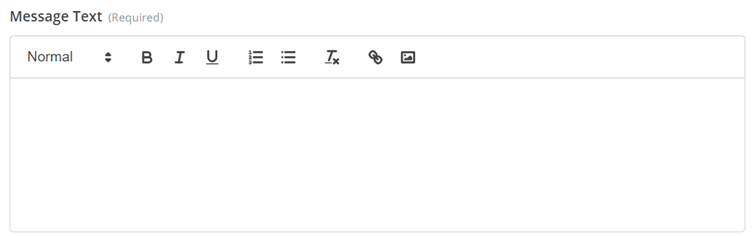
The rich-text editor provides a user-friendly interface similar to Microsoft Word, with formatting options including bold text, font sizes, colors, and more:
HTML Editor
For advanced customization, you can switch to HTML mode by toggling the HTML switch above the text editor:
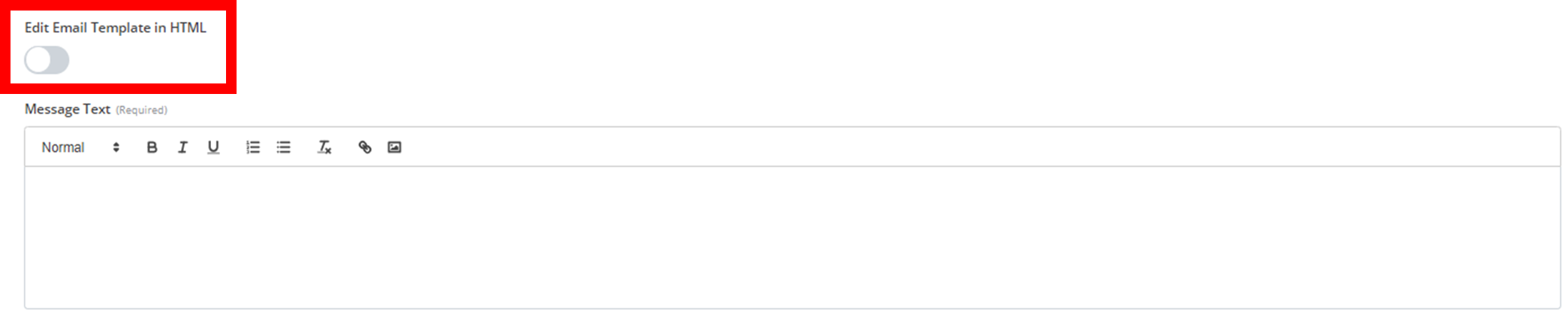
When HTML mode is enabled, the text editor interprets your content as HTML code, allowing for precise control over formatting, styling, and layout. Toggle the switch again to return to rich-text mode.
Links
Adding clickable links to your emails requires specific formatting depending on which editor you're using.
Rich Text Editor
To create a link in the rich-text editor:
Highlight Text
Highlight the text you want to turn into a clickable link
Open Link Dialog
Click the link button (or press Ctrl+K) to open the link dialog
Enter URL
Enter the full URL in the text field
Save
Click Save to create the link
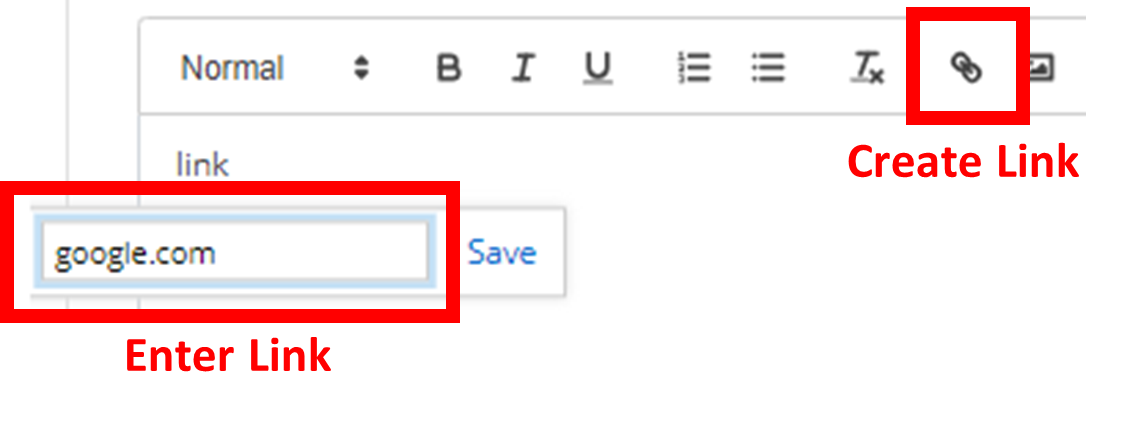
The highlighted text will become clickable and direct users to the specified URL.
HTML Editor
In HTML mode, you can create links using standard HTML anchor tags:
<a href="https://google.com">google.com</a>

<!-- or with custom text -->

<a href="https://google.com">Google</a>
Attachments
Email messages support file attachments, allowing you to include documents, images, or other files with your message.
Adding Attachments
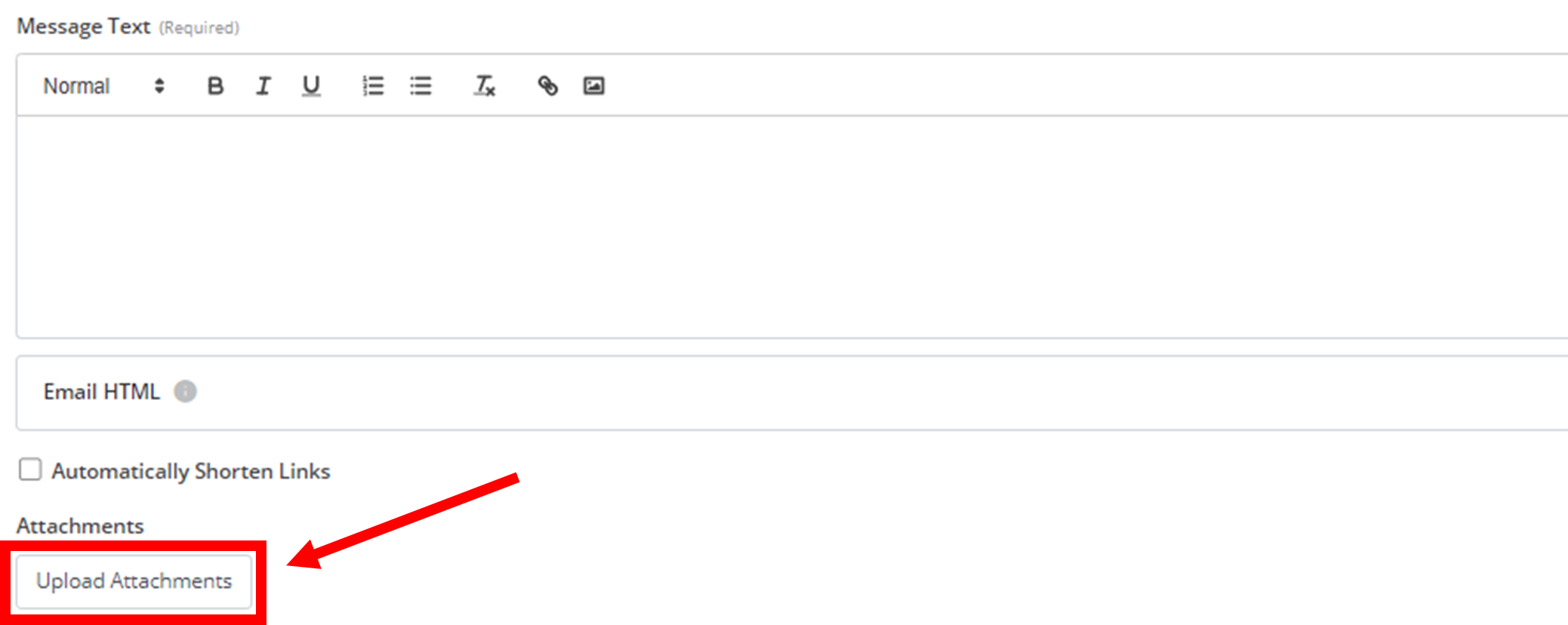
To attach files to your email:
Add Attachment
Click the Add Attachment button
Select Files
Select the files you want to attach from your device
Verify
The files will appear in the attachments list
Removing Attachments
To remove an attachment, click the trash icon next to the file name in the attachments list:

How is this guide?