
Domains
Domains
To send outbound emails using Message2Give, you need an Email Alias to send the email with. This email alias also needs a Domain (eg 'example.com' is the domain in 'abc123@example.com'). You must register these domains with Message2Give before you can use them for emails within your workspace. Here is where you register your domains with Message2Give.
Setup
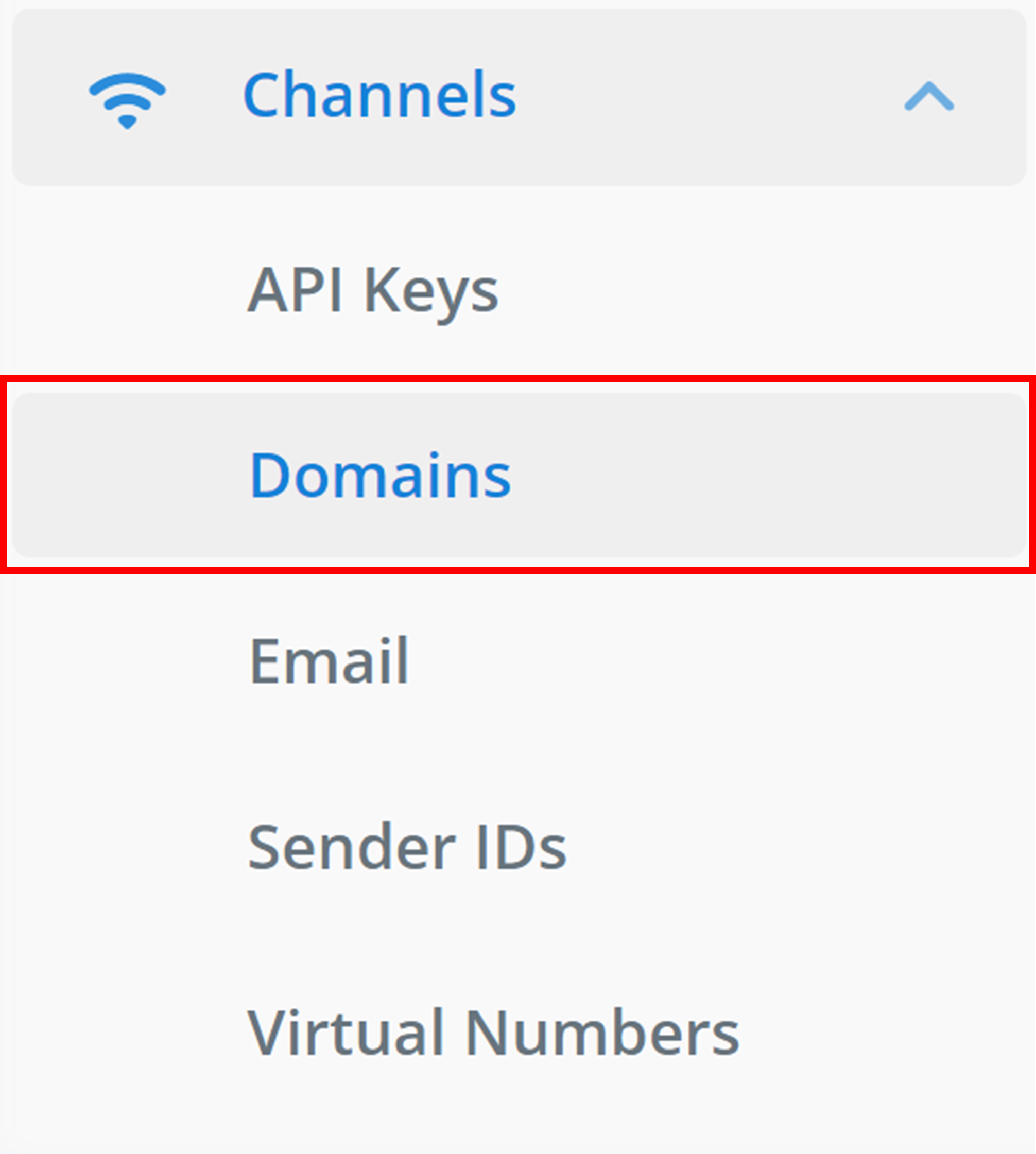
To find the domains section in your workspace: on the left sidebar, navigate to 'Channels', and then find 'Domains'.
Create
Then, to register a new Domain, click + Domain.
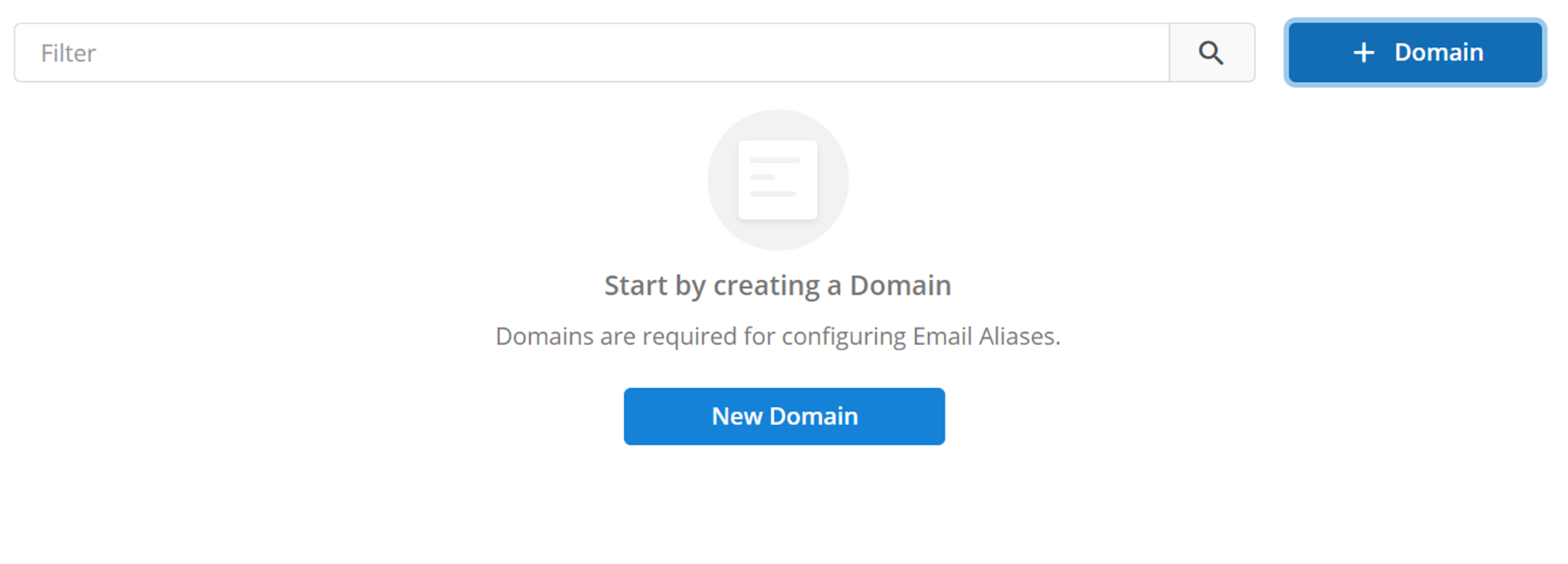
Configure
Clicking on this button will bring up a small menu like the one below:
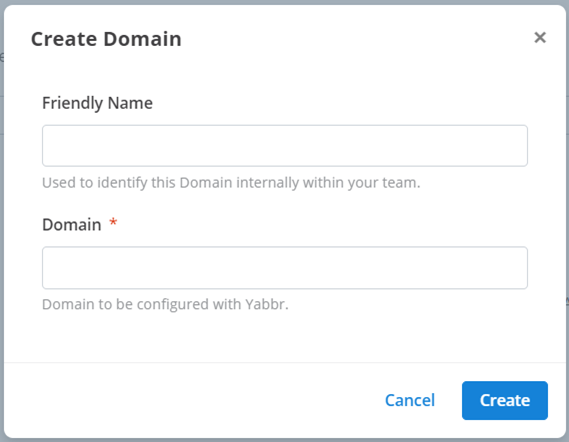
These are the settings and configurations of the domain. They are the:
- Friendly Name: the display name of your domain to identify it within your workspace.
- Domain: the name of your domain. For example, the domain in the email address 'abc123@example.com' would be 'example.com'.
Then, to register your domain in your workspace, click Create.
:::important Important These domains will not be immediately ready for use. Message2Give must verify that you own and have access to a domain before you can use it in your workspace. :::
Verification
Once you have added a domain for registration, it will be listed in a menu similar to the one shown below:
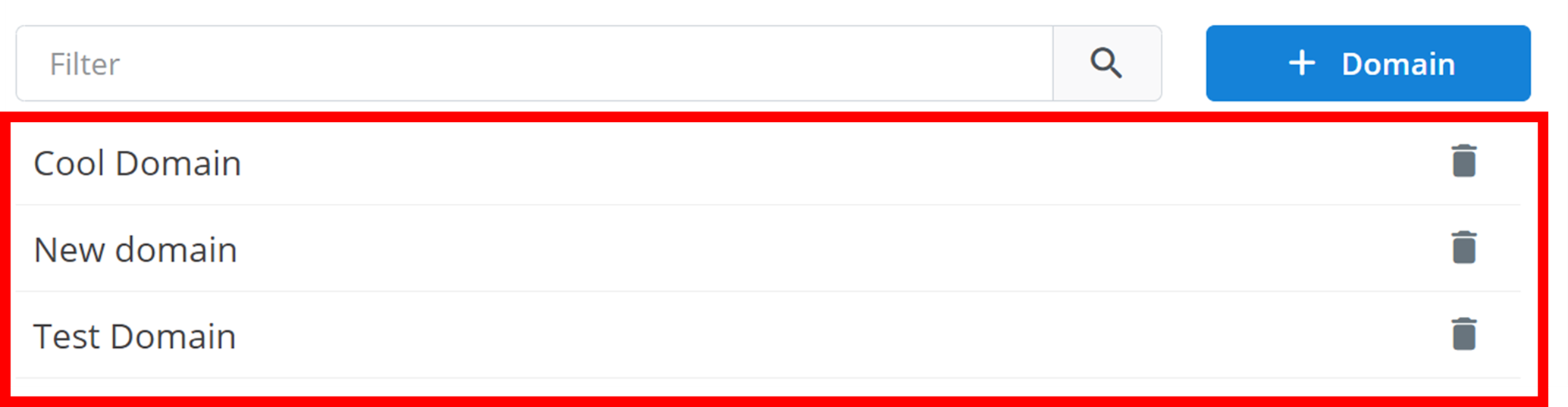
To verify the domain with Message2Give:
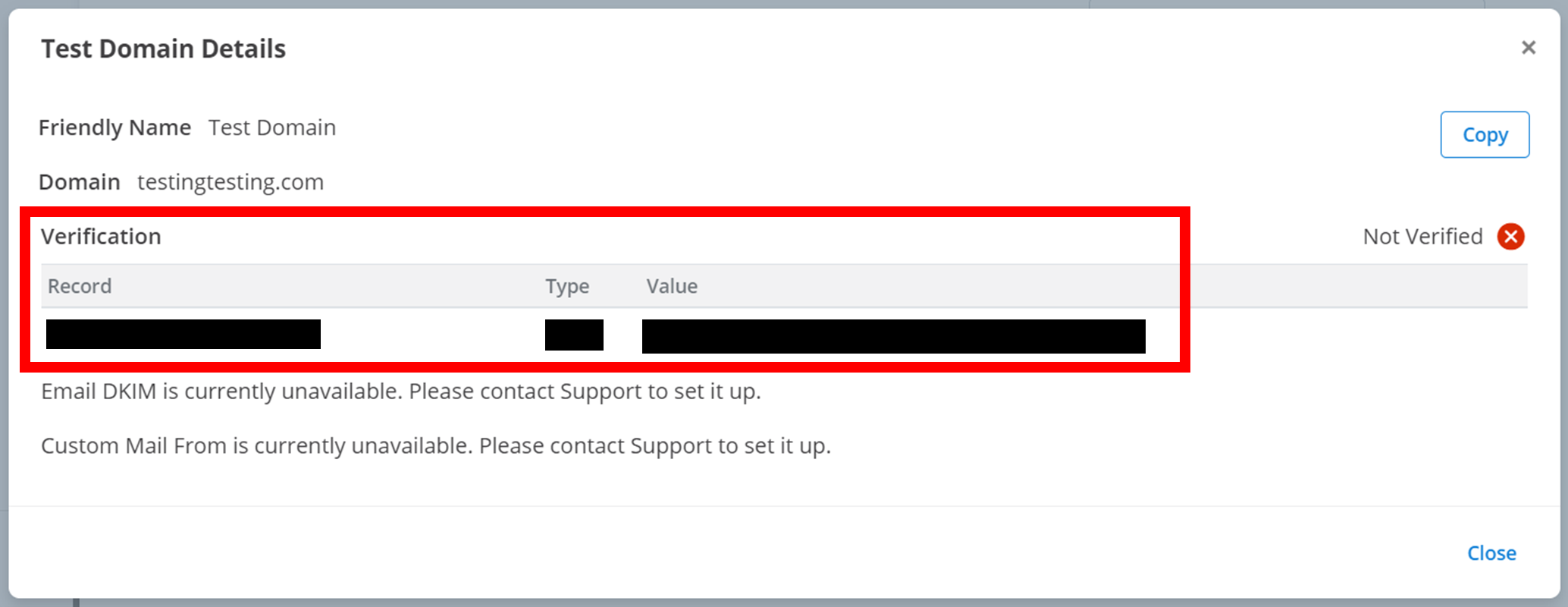
- Click on the domain to access the DNS records that Message2Give automatically generated for the domain. The records have been outlined below (details have been redacted for documentation):
-
Copy and save these DNS records. The
Copybutton will copy the DNS records to your clipboard. -
Navigate to the DNS settings of your domain and insert the copied DNS records.
Once the records have been added, the domain is automatically verified and enabled within your workspace.
Management
To delete a domain from your workspace, click on the trash icon on the right of the domain:

:::tip TIP You can search the domains by name using the 'Filter' text box.

:::
How is this guide?