
Sender IDs
Sender IDs
Sender IDs are like email addresses, but for phone messages instead of emails. They send and receive phone messages like calls or texts. In Message2Give, Sender IDs are necessary for outbound messaging. They need to be registered within the platform before you can use them across your workspace.
Message2Give offers three main forms of Sender IDs:
Virtual Numbers: These are rented from Message2Give. They offer both inbound and outbound functionality. This is the only Sender ID type with inbound functionality. Therefore, they are the only Sender IDs you can use in Chat. Refer to our documentation on Virtual Numbers for comprehensive details.
Alpha Codes: Alpha Codes are alphanumeric (numbers and letters) strings typically representing your brand. These are special because recipients receive phone messages from an alphanumeric string rather than a phone number. However, it's important to note that Alpha Codes lack inbound functionality; recipients cannot respond to messages sent via Alpha Codes.
Personal 'BYO' Numbers: This option involves using your existing personal phone numbers as Sender IDs within your workspace. While recipients can respond to messages sent from these numbers, these responses will only appear on your personal phones. Message2Give cannot access these responses, rendering inbound functionality unavailable.
:::info Important Alpha Codes and personal numbers have to be verified by Message2Give before you can use them in your workspace. :::
Setup
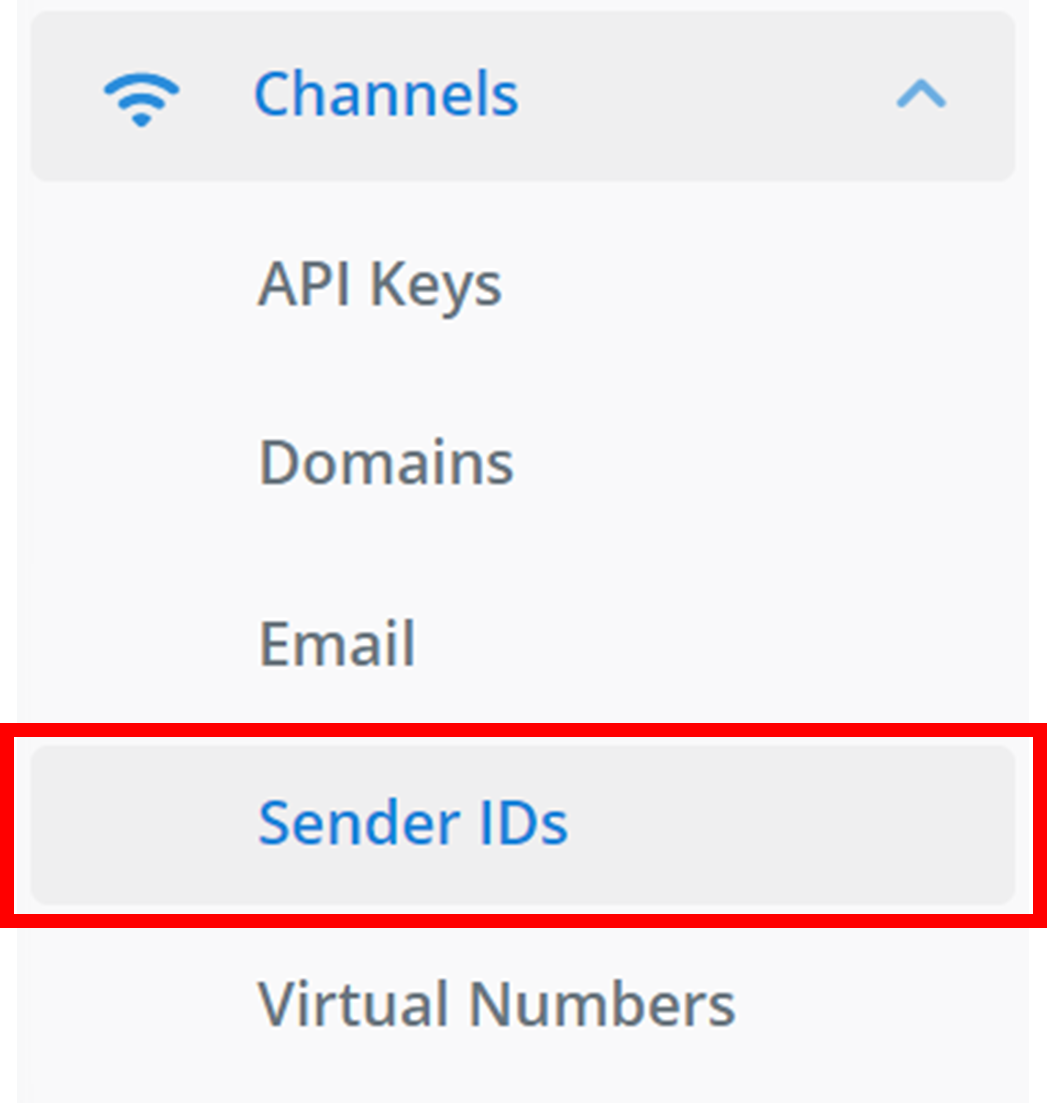
To find the Sender IDs section in your workspace: on the left sidebar, navigate to 'Channels', and then find 'Sender IDs'.
Create
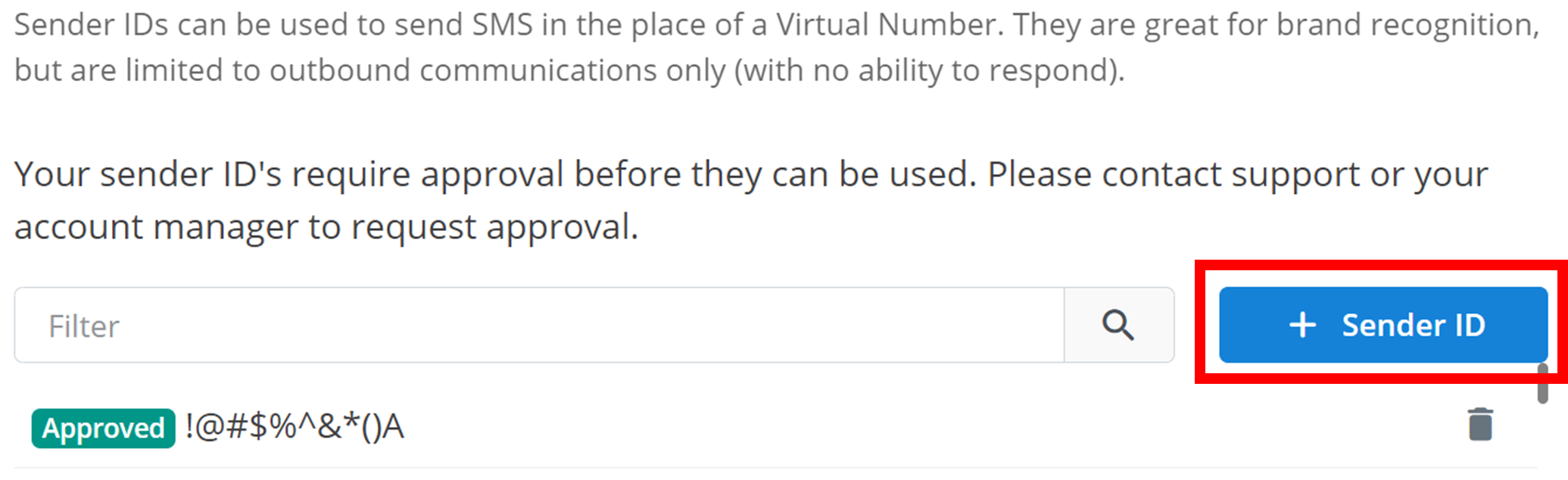
Then, to create a new Sender ID, click + Sender ID.
Configure
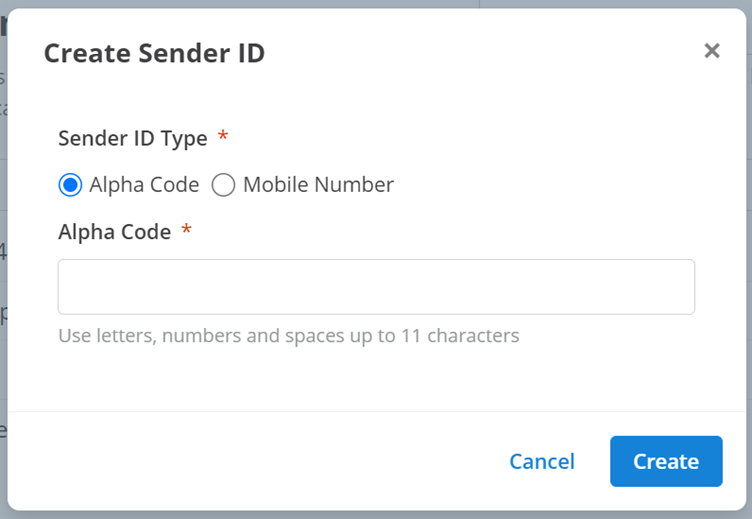
Clicking on this button will bring up a small menu like the one below:
Menu 1 - Alpha Code
Menu 2 - Mobile Number
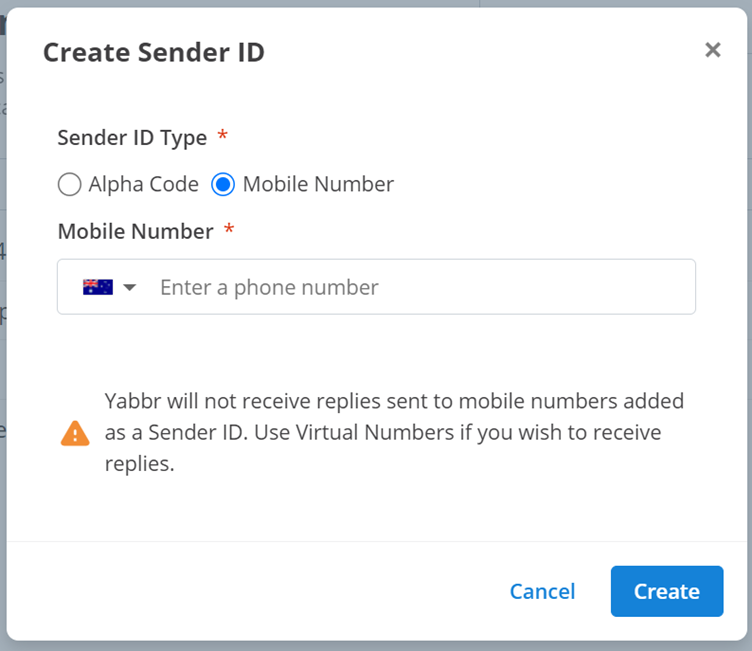
These are the settings and configurations of your new Sender ID. They are the:
- Sender ID Type: this is where you select between the different types of Sender IDs explained earlier. Obviously, select 'Alpha Code' to create an Alpha Code Sender ID. Select 'Mobile Number' to create a personal 'BYO' number Sender ID.
- Alpha Code: this is the name of the Sender ID you want to create. For example, you may want to create a Sender ID called 'Brand Name News' that contacts customers about new information, promotions, or updates related to your brand or products.
- Mobile Number: this must be a phone number that you have access to and want to use as a Sender ID within your workspace. Select the region of the phone number using the drop-down menu. Then, enter the actual number in the rest of the text box.
Then, to add the new Sender ID to your workspace, click Create.
:::info Important These types of Sender IDs need approval before they can be used elsewhere in your workspace. :::
Approval and Verification
Once you create a Sender ID using an Alpha Code or a Mobile Number, Message2Give needs to make sure you have a right to use it.
For an Alpha Code, Message2Give needs to make sure that the name aligns with your brand or business in some way.
For a Mobile Number, Message2Give needs to send the number a message and receive a message back from it confirming that they would like it to be used within a Message2Give workspace.
Once this process has been completed, the Sender ID will be approved and verified and can then be used throughout your workspace.
Management
All of your workspace's Sender IDs will appear here:
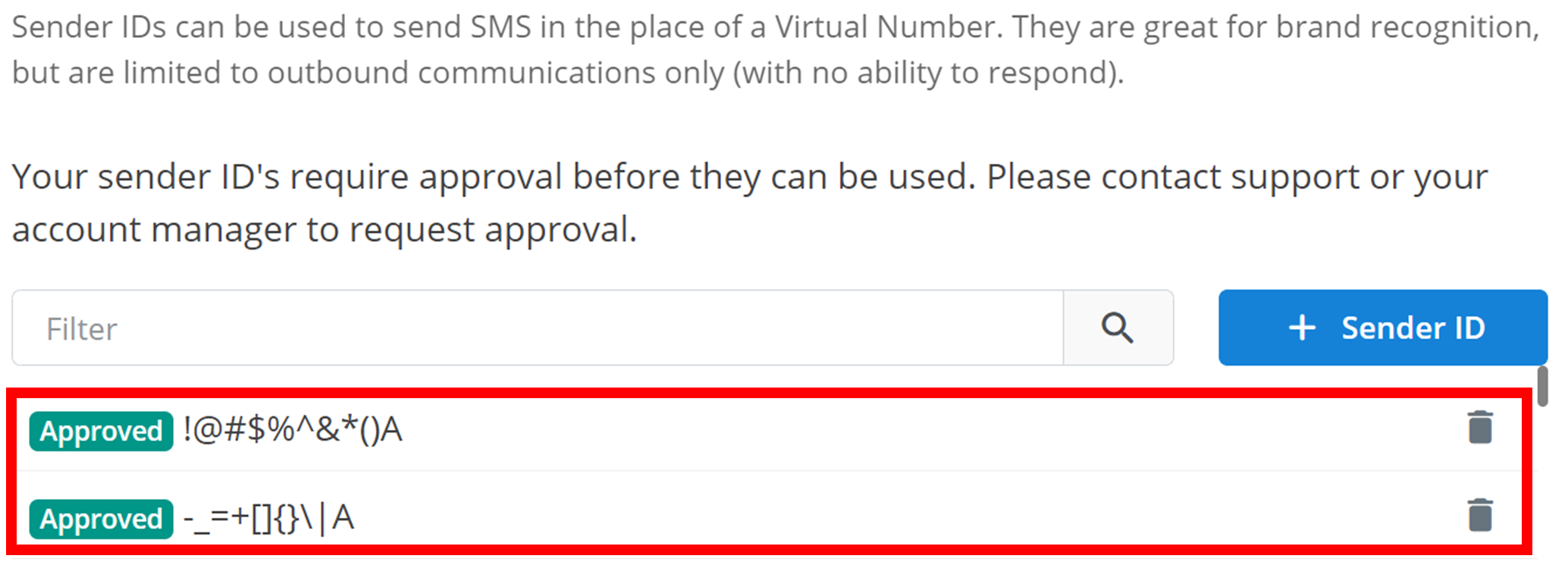
This overview will display the approved status of the Sender ID, then the Sender ID.
To remove a Sender ID from your workspace, click the trash icon on the right of the Sender ID:

:::tip TIP You can search the Sender IDs by name using the 'Filter' text box. :::
How is this guide?