
API Keys
API Keys
Message2Give has APIs for all of the features in your workspace. These APIs need some authentication. One method of authenticaion is using an API Key. This is where you create new API keys to use in the Message2Give API.
Setup
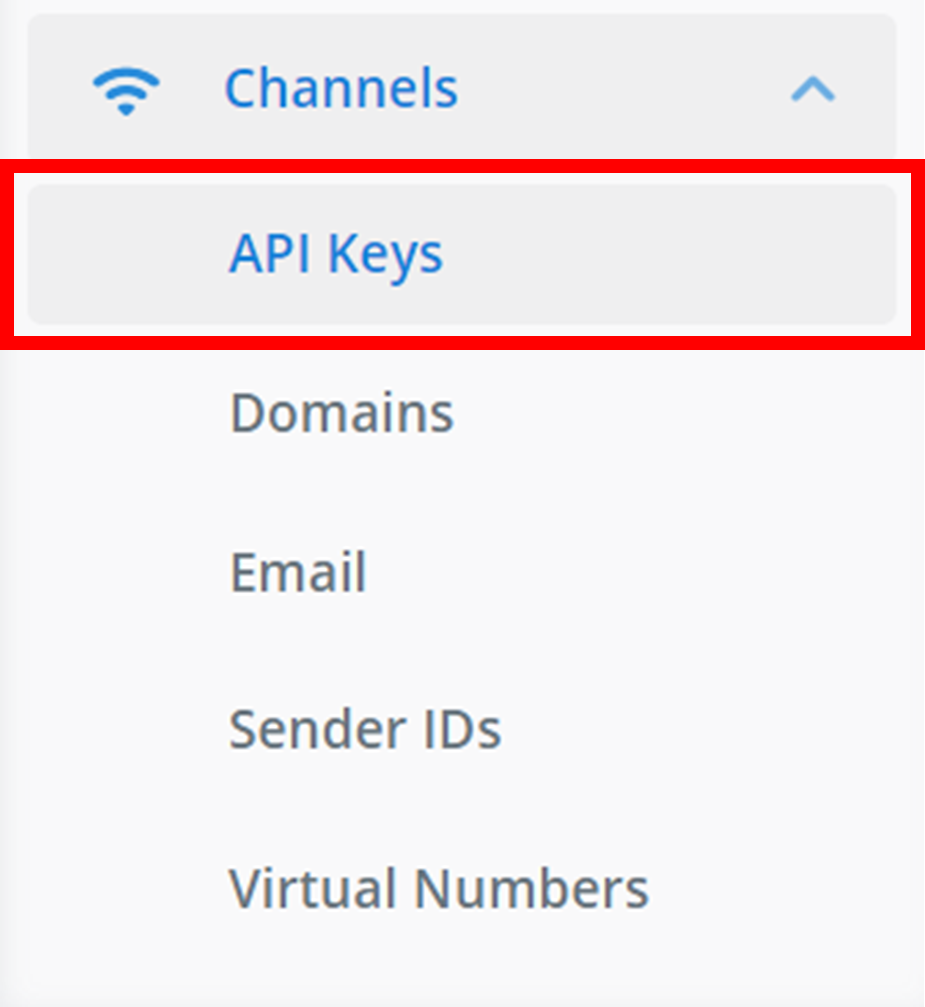
To find the API Keys section in your workspace: on the left sidebar, navigate to 'Channels', and then find 'API Keys'.
Create
Then, to create a new API Key, click + Key.

Configure
Clicking on this button will bring up a small menu like the one below:
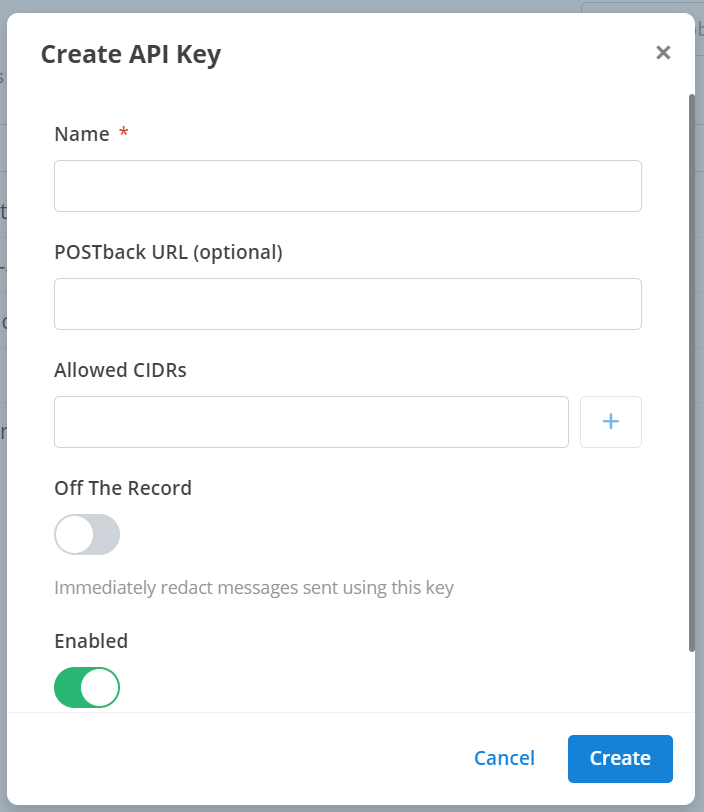
These are the settings and configurations of your new API Key. They are the:
- Name: the display name of your API Key to identify it within your workspace.
- POSTback URL: some Message2Give endpoints deliver live events via a POST request to a nominated URL. This is that URL. It is most commonly used for message receipts from outbound messages on the messages endpoint.
- Allowed CIDRs: these are the range of IP addresses that are permitted to access and use this API Key. Only requests originating from these IP addresses are permitted. Type in the CIDR into the text box, and then click
+to add it to the 'Allowed CIDRs' list. Click the 'X' next to a CIDR in this list to remove it from the list. - Off the Record: Message2Give logs every logs every request made with the Message2Give API in a database. Enabling 'Off the Record' means that any request made with this API will not be logged.
- Enabled: this enables/disables the functionality of the API Key.
Finalisation
Next, click Create.
Then, a small menu will appear like the one below. This will show you your API Key. Your API Key will be located where the redacted text is in the screenshot below. Copy and store this API Key in some place safe. Once you have confirmed that you have saved the API Key by selecting the checkbox outlined in the screenshot below, click Close to close the menu and finish the API Key creation process.
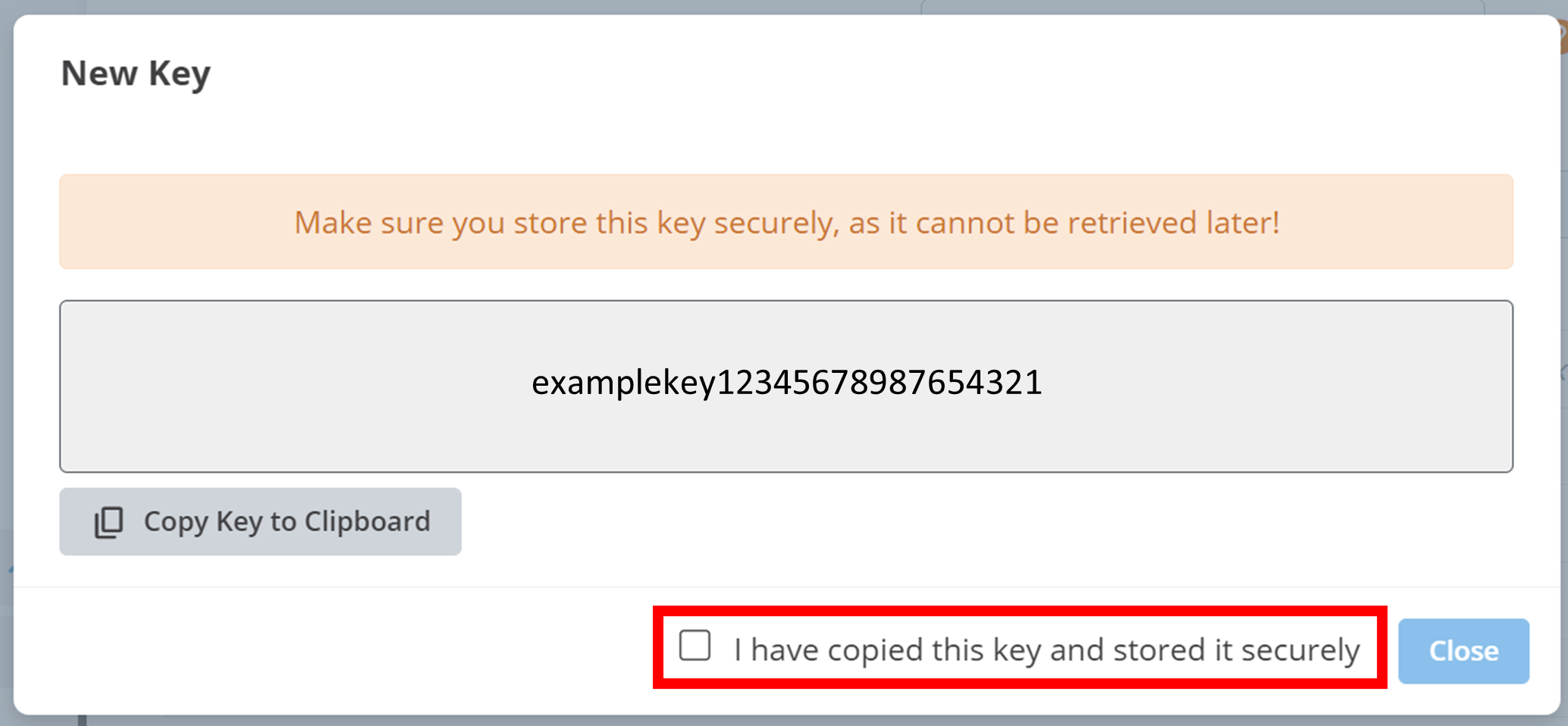
:::warning Warning You cannot find your API Key ever again once you have closed this menu. :::
Management
All of your workspace's API Keys will appear here:
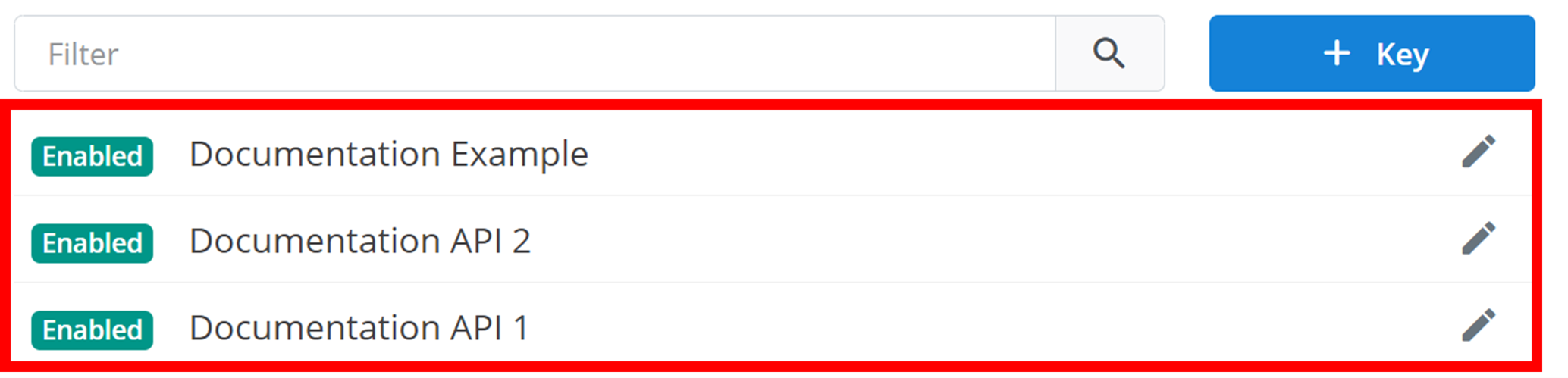
This overview will display the enabled status of the API Key, then the key's name.
To edit an API Key and all of its configurations, click the pencil icon on the right of the API Key:

:::tip TIP You can search the API Keys by name using the 'Filter' text box. :::
How is this guide?