
Credential Vault
The Credential Vault is a location where you can store constant information and data - 'credentials' - to be used in any of your workflows. It is most useful for storing things like API keys important IDs, or commonly used URLs. All of your credentials will be stored in the {{CREDENTIAL}} data store. To learn how to reference these credentials in your workflow using placeholders, see here.
This vault also supports the encryption of sensititive information to prevent it form being accessed by unwanted personnel.
The Credential Vault also sorts your information into sets of credentials. Each set of credentials usually contains related information. For example, you may create a set of credentials for API keys called "API Keys", and then store all of your API keys in that set and then encrypt them for safety.
Initialisation
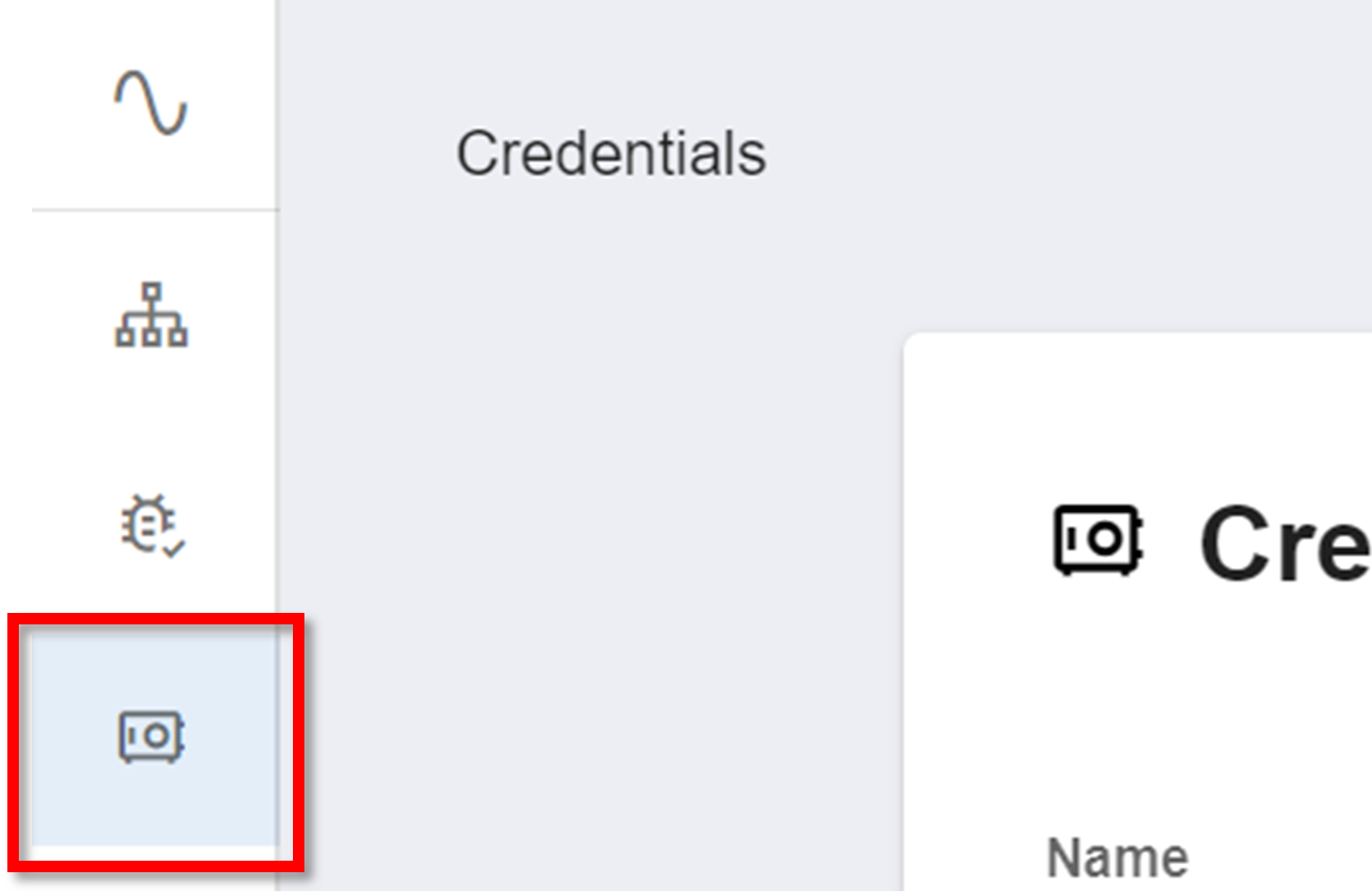
Navigate to Credential Vault
To create new set of credentials, navigate to the Credential Vault section on the sidebar:
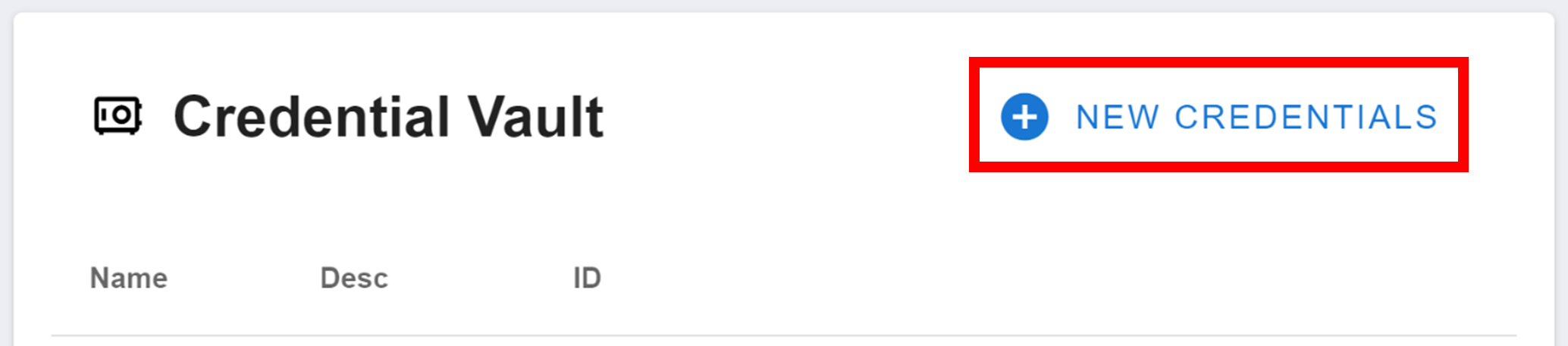
Configure Credentials Set
Clicking that button will open this menu:
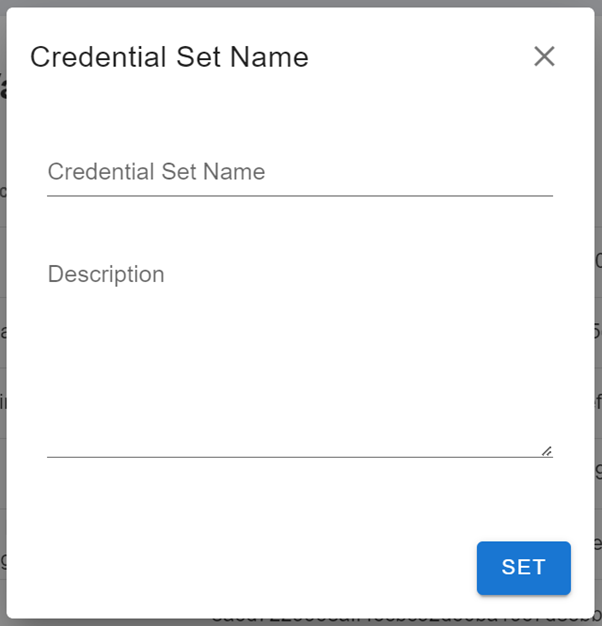
Give your new credential set a name under 'Credential Set Name'. This will be used to help identify your credential set within your workspace. Then provide a short explanation of what the credentials set is for under 'Description'. Finally, click SET to finalise the initialisation of your new credential set.
Configuration
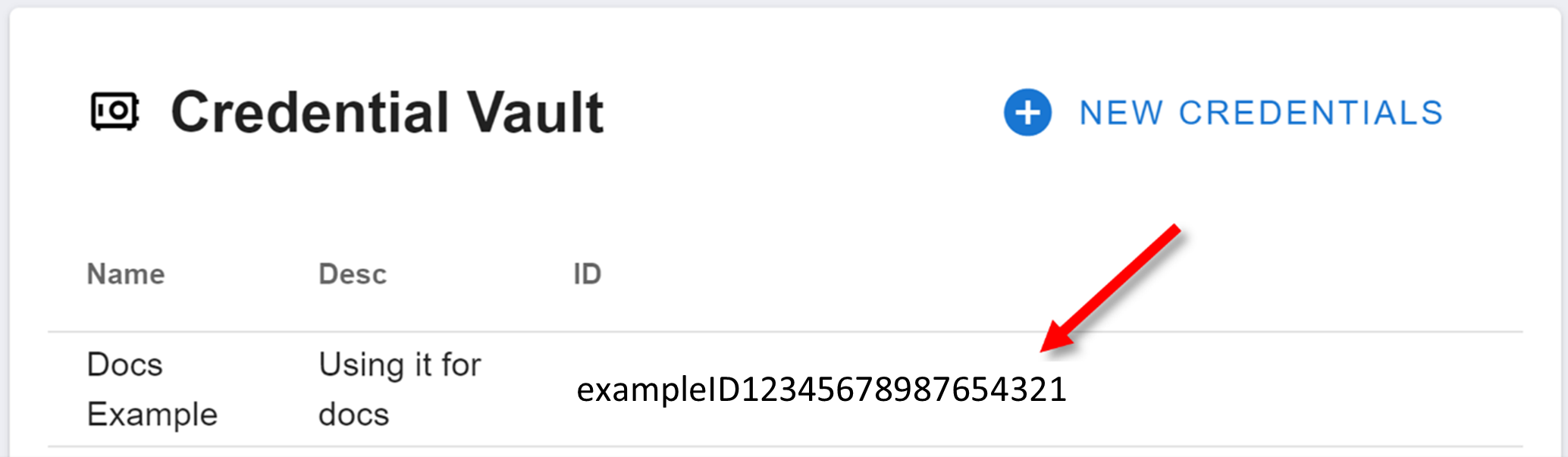
Your new credentials set will appear at the bottom of the Credential Vault. Click on the set to open its storage.
The inside of an empty credentials set will look like:
{
  "credentials": [],
  "name": "Docs Example",
  "description": "An example credentials set for documentation.",
  "created": "2024-04-11T12:35:56.328Z"
}
The Credential Vault uses Workflow's JSON editor. Learn more about how to use this editor here.
Storing Data
The only property here you need to edit is the "credentials" property. This property is an array. Each item in the array is an object that gives details about a piece of data to store as a credential.
This object has three properties: name, value, and sensitive.
-
nameis the name of the credential you are storing. This name is used to reference the credential in your workflow. -
valueis the credential you are storing. -
sensitiveis a boolean. If it is true, when you save your credentials, this credential will be encrypted and censored within your vault. No one will be able to see its value. It will just look like a string of asterisks.
Example
The following is what one credentials set may look like:
{
  "credentials": [
    {
      "name": "api-key",
      "value": "*******",
      "sensitive": true
    },
    {
      "name": "number-of-members",
      "value": 27,
      "sensitive": false
    },
  ],
  "name": "Docs Example",
  "description": "An example credentials set for documentation.",
  "created": "2024-04-11T12:35:56.328Z"
}
The "api-key" credential would have had a visible value when created, but once the credentials set was saved and closed, its value was hidden by asterisks as shown.
Using Credentials
The first step in using a credential set is importing it into your workflow. To do this:
Open Workflow Properties
Then, in your workflow, click on the pencil icon in the toolbar up the top. This will open your workflow's properties.

Add Credential ID
Find the "credentials" property - it should be an array. Then, insert the credential set's ID as a string inside this array.
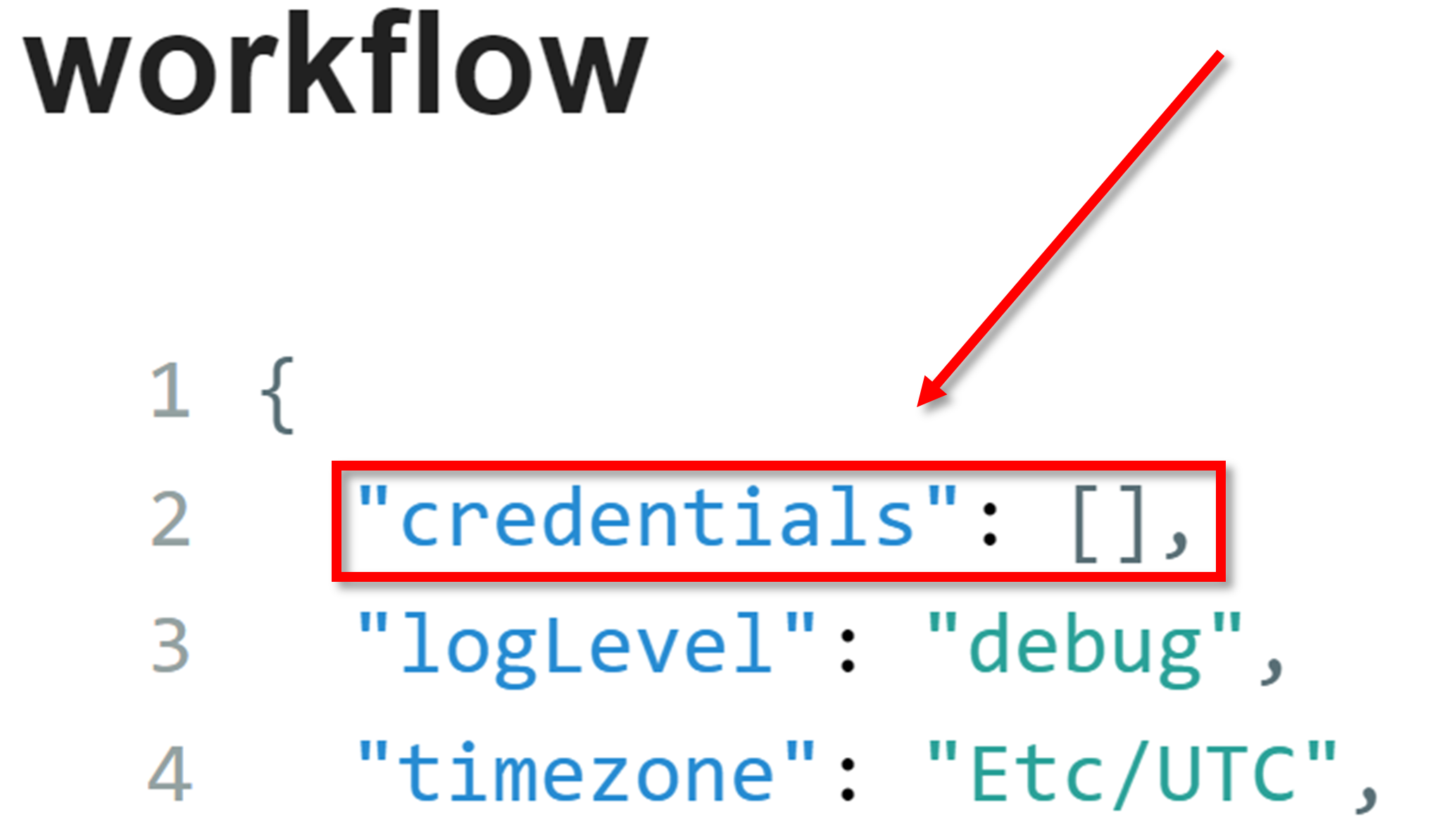
Your credential set can now be used within your workflow.
To reference specific credentials in your workflows using the placeholder method, follow the format {{CREDENTIAL.set-name.credential-name}}. So, in the example from Configuration, to use the API key, you would use the placeholder {{CREDENTIAL.Docs Example.api-key}}.
How is this guide?