
Event Subscriptions
Overview
When an action is performed in a Message2Give service, it will trigger an 'event'. These actions include sending a message, concluding a chat, and updating a contact's information. These will all trigger events.
Catching Data
Each of these events also have some associated data. For example, when a chat is concluded, the triggered event will record the contact information of the chat participants.
You can then catch and store this data using an Event Subscription. So:
An action is executed.
An event is triggered. It will record information about the action.
The information is relayed to all the event subscribers.
The event subscriber relays the information to some API endpoint (usually acting as a webhook).
Subscribing
Event subscriptions will "subscribe" to certain types of events (via a whitelisting process). Whenever an event is triggered, it will relay its data to all of its subscribers. An event subscriber can catch and record data from any Message2Give events or custom events.
Relaying
Each event subscriber will have a "destination" URL. Whenever the subscriber catches a body of information from an event, it will send a POST request with this body to the "destination" URL. This destination can be anything. However, it usually acts as a webhook so that you can make some alteration to a page or app based on the event's data. For example, it may update the information on the page where the event was triggered.
You could also use the URL to store the data for a later use.
Initialisation
Navigate to Event Subscriptions
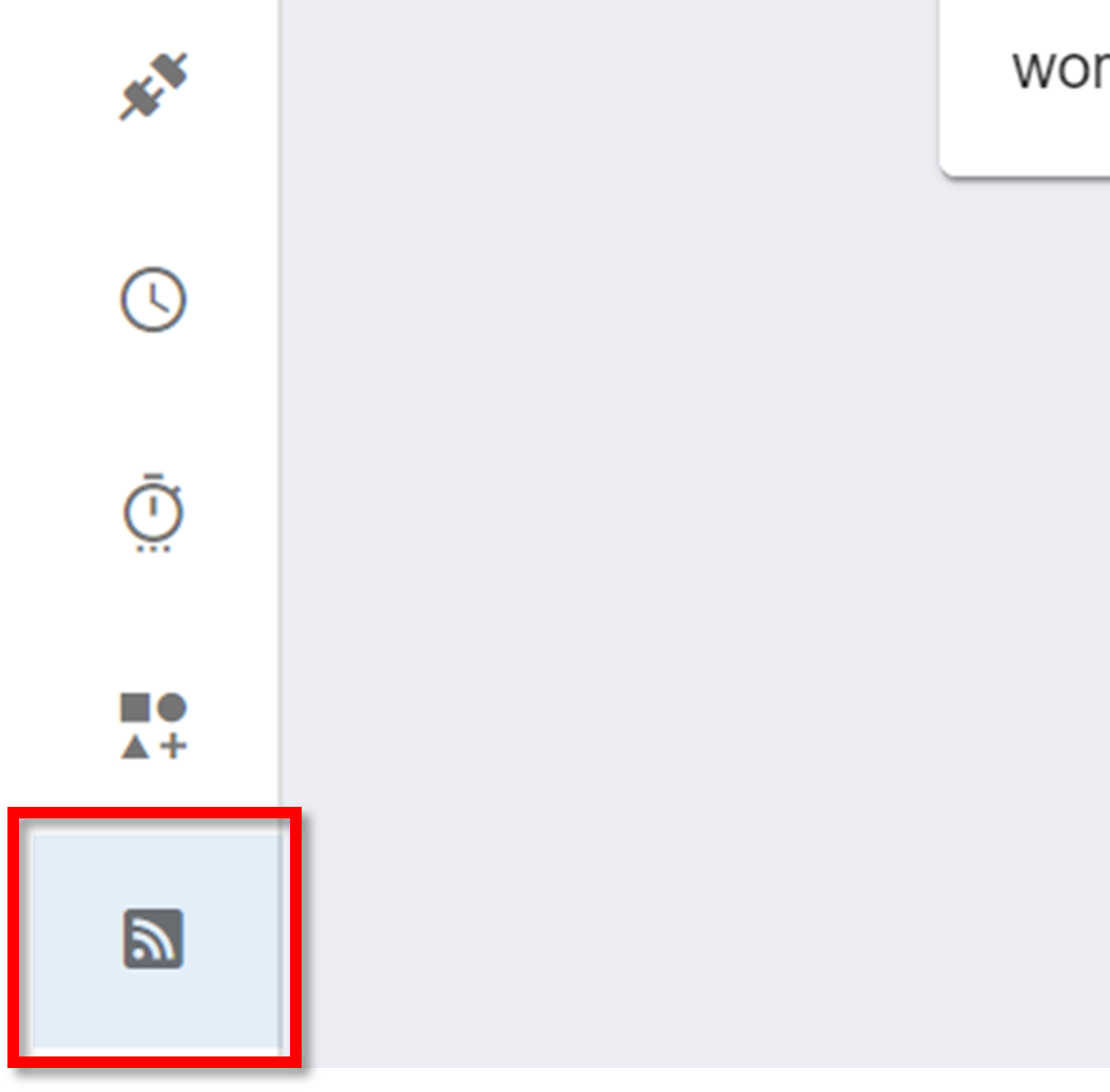
To create a new event subscription, navigate to the Event Schemas section on the sidebar:

Configuration
JSON
Creating a new event subscription will meet you with the following JSON:
{
  "destination": "https://your.event.webhook.com",
  "whitelistedTypes": [
    "allowed.event.type.one",
    "allowed.event.type.two"
  ],
  "blacklistedTypes": [
    "disallowed.event.type.one"
  ],
  "enabled": true
}
Explanations of the above properties:
- destination: the API endpoint to POST any received event bodies to.
- whitelistedTypes: all the events that the subscription will catch. This property is an array. Each item is the name of an event to whitelist. You can also reference an event prefix in this array to whitelist all events with that prefix. Learn more about event prefixes here.
- blacklistedTypes: all the events that the subscription will not catch. The same rules apply as
"whitelistedTypes". - enabled: boolean.
truemeans the subscription is active and will catch event data.falsemeans the subscription is inactive and will not catch event data.
Some extra properties that will appear after saving the subscription include:
- created: the time of the subscription's creation.
- lastUpdated: the last time the subscription was saved.
- headers: the headers of the POST request.
- responses: see below.
An event is relayed to subscribers via an API request. The subscriber will thus return a HTTP status code to the event caller. If the request fails (eg status code 4xx), the request will be reattempted until one of three things happens:
- the attempt is successful
- the time limit is exceeded for reattempts
- the
"responses"object catches one of the status codes
To "catch" a status code, you include it as a property within the "responses" object. The value of this property is a link to send the data to instead of the subscriber. This data will also include the number of previous request attempts.
In summary, an event sends a request to a subscriber. It will keep attempting to send this request. If a specified status code is returned, the event will send the data to another specified link. The JSON may look something like this:
{
  "responses": {
    "2xx": "https://your.event.webhook.com",
    "404":  "google.com"
  }
}
Note
Event data will also be sent to the "destination" property in the Event Subscriber JSON upon a successful (2xx) request.
If the request is successful (2xx status code), the event data will be sent to https://your.event.webhook.com. If there is a 404 error, the event data will be sent to google.com.
Tip
If a 404 is returned, it usually means that some data is missing or doesn't exist on the subscriber's end, so it would be wise to terminate the reattempt process and send the data elsewhere.
Message2Give events
An event subscription can either catch custom events defined by your event schemas, or it can catch events predefined by Message2Give. These Message2Give events will record information that is associated with the action that triggered them. For example, the "chat.concluded" event will record information about the chat session and its participants. This information can then be caught by an event subscriber.
You will find some event subscriptions that appear in your workspace by default. These will have the "public": true property. These are Message2Give's default subscriptions that are in all workspaces.
Information
- You can only catch Message2Give events that have been triggered from within your own workspace.
- Your Workflows and Message2Give App workspaces are connected. An event triggered in your Message2Give App workspace can be caught by an event subscription in your Workflows workspace.
These predefined events are triggered by various actions in your Message2Give App and Workflows workspace:
"chat.concluded": a session in the Message2Give Chat is concluded."contact.update": a customer's contact information is updated.
You will find the properties associated with these events within their event schemas.
Message2Give subscriptions
Your Workflows workspace will come with some default event subscriptions. The only default subscription currently in place is the "workflows.dev.tedirex.yabbr.io" subscription. It will catch any events with the prefix workflow.log. and POST it to the Message2Give logs API endpoint.
Management
After creating a subscription or navigating to the event subscriptions page using the sidebar, you will be met with the event subscriptions homepage:

The events subscriptions homepage will display all of your workspace's event subscriptions. From left to right, it will display the subscription's name, its ID, and its "Source". The Source column signifies any default event subscriptions. A default subscription will have the "Default" value in this column.
Click on an event subscription here to edit it.
Info
An event subscription's name will be some contraction of its "destination" URL.
How is this guide?